Pre-Processing Steps
Successful watersheds often depend on performing a few pre-processing steps, which can include changing your image into another image whose 'catchment basins' are the objects that you want to identify and creating seeds within each basin. In addition, you can create masks to define the area of application for the watershed.
Landscape image… Provides the 'catchment basins' for watersheds and can be created as distance transform maps or as a filtered version of the original image (see Landscape Images).
Seeds… During processing, the seeds defined by regions of interest or the labels of a multi-ROI are expanded and then overwritten into the initial region of interest or multi-ROI (see Seeds).
Masks… Masks created as regions of interest can be used to restrict the areas of application of watershed transforms (see Creating Masks).
 Landscape Images
Landscape images provide the 'catchment basins' for watersheds and can be created as distance transform maps or as a filtered version of the original image.
Distance Transform Landscape Images
In some cases, a distance transform can be useful for producing an image whose catchment basins are the objects you want to identify. For example, images consisting or roughly circular, touching blobs can be well-suited for distance transforms,
-
Do one of the following:
-
Create a region of interest of the objects that you want to segment and then invert the ROI.
-
Create a region of interest of the background, that is, of everything except of the objects that you want to segment.
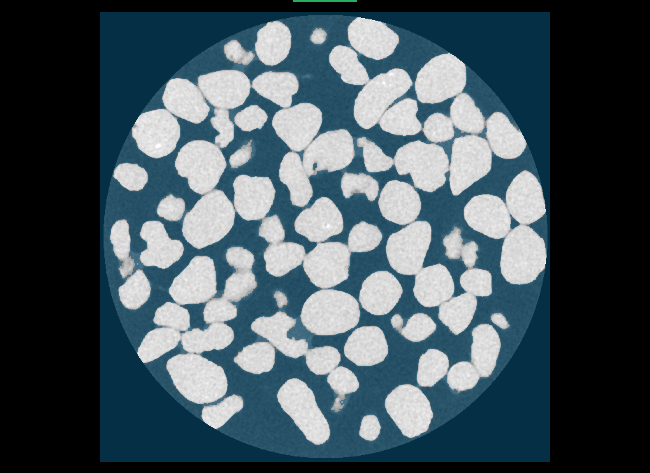
An example region of interest for computing a distance transform is shown below.

-
-
Right-click the region of interest and then choose Create Mapping Of > Distance Map in the pop-up menu.
A distance map computed from the region of interest is created.

-
Right-click the distance map and the choose Modify and Transform > Invert in the pop-up menu.
-
Check the Invert values option in the Dataset Inverter panel and then click Apply.

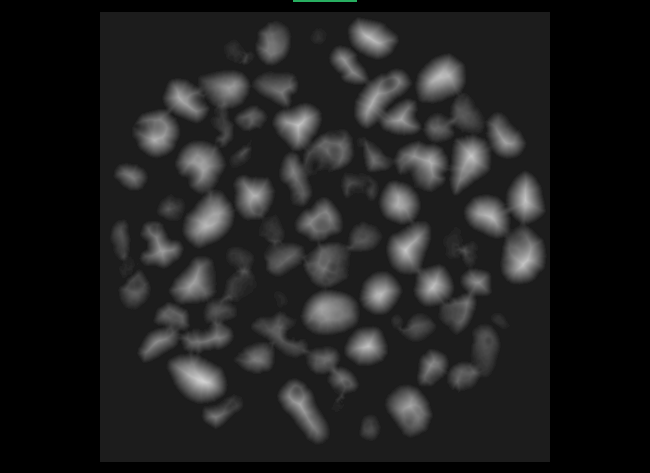
The created inverted distance map, shown below, can be used as the landscape image for the watershed transform.

 Edge Detection Landscape Images
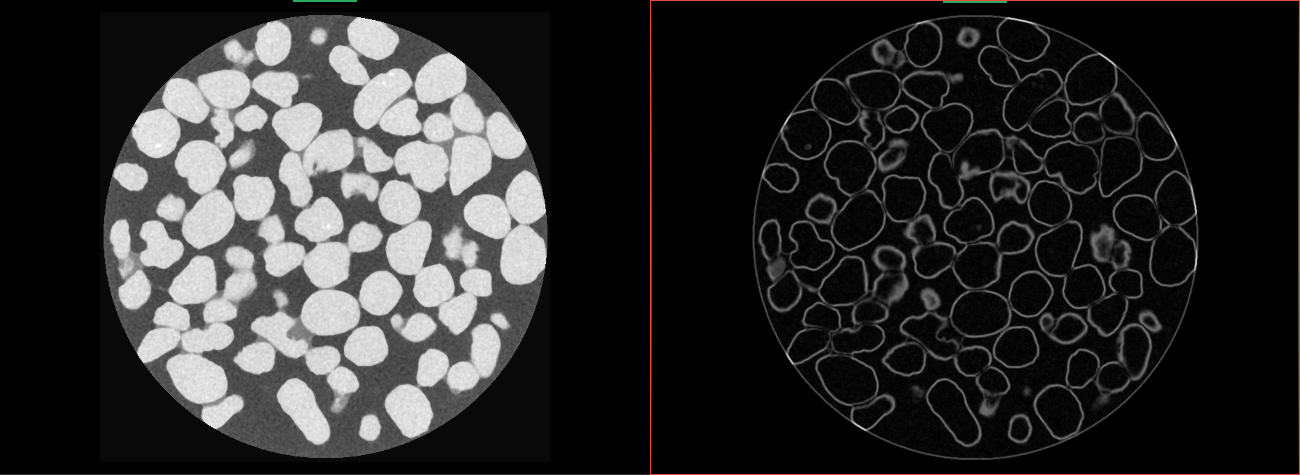
In some cases, a dataset with clearly defined edges can be used as the landscape image, such as the Sobel version of the original data. See Edge Detection Filters information about processing image data with Dragonfly's edge detection filters. An example of a Sobel filtered image is shown below.
Original image (left) and the result of applying a Sobel filter (right)
Seeds
Watersheds are evaluated with 'seeds' defined by regions of interest or the labels of a multi-ROI and the selected landscape image. During processing, the seeds are expanded and then overwritten into the initial region of interest or multi-ROI.
You should note the following when creating seeds:
-
Each 'catchment basin' should only contain the labeled voxels of one region of interest or multi-ROI class.
-
The labeled voxels of a class should never appear in more than one 'catchment basin'.
-
You can use any of the ROI Painter tools to edit the classes of a multi-ROI (see ROI Painter).
-
Create a distance map from the background region of the image, as described above and shown below.
-
Define an intensity range that only includes high intensity pixels in each cluster, as shown below. Refer to the topic Creating Threshold Segmentations for information about defining intensity ranges and creating threshold segmentations.
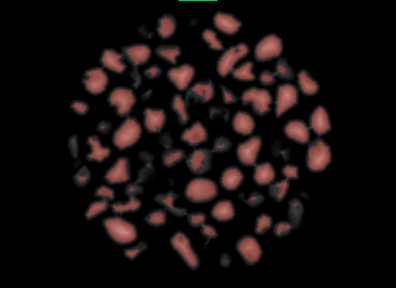
Note In some cases, you can define the required range by clicking the Upper Otsu button.
-
Click the Add to New button in the Range box, as shown below.
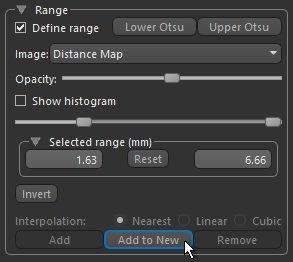
A new region of interest that includes all of the highlighted voxels is created.
-
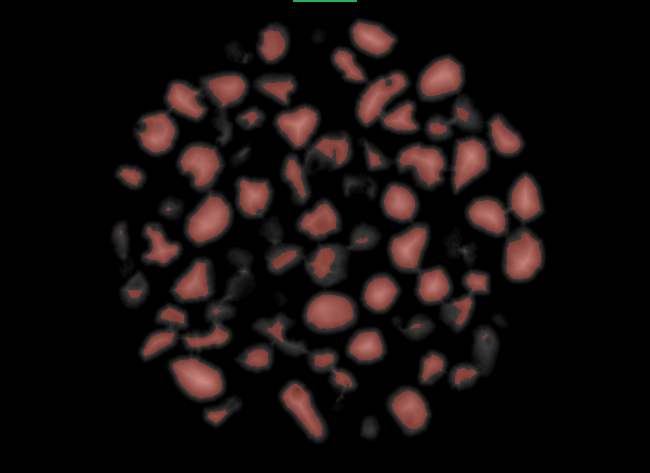
Right-click the region of interest and then choose Connected Components > New Multi-ROI (26-connected) in the pop-up menu.
Each connected component is labeled as a distinct class, as shown below.

 Creating Masks
Masks created as regions of interest can be used to restrict the areas of application of watershed transforms and must be of the same dimensions as the input multi-ROI and landscape image.
In some cases, you should be able to create a region of interest that defines the objects you want to segment by simple thresholding (see Creating Threshold Segmentations), as shown below.
A range defined with the upper Otsu threshold (left) and resulting mask ROI (right)

